
Universal labels
At the end of a bazaar, hundreds of items often have to go back to their sellers. Universal labels make this easier: instead of a seller number, the label has a mark made of a colored digit, letters and a number. With it, helpers put items into the right basket in two steps.
The mark belongs to the seller, never changes and exists only once. So their labels also work at the next bazaar, and they don’t have to print them again.
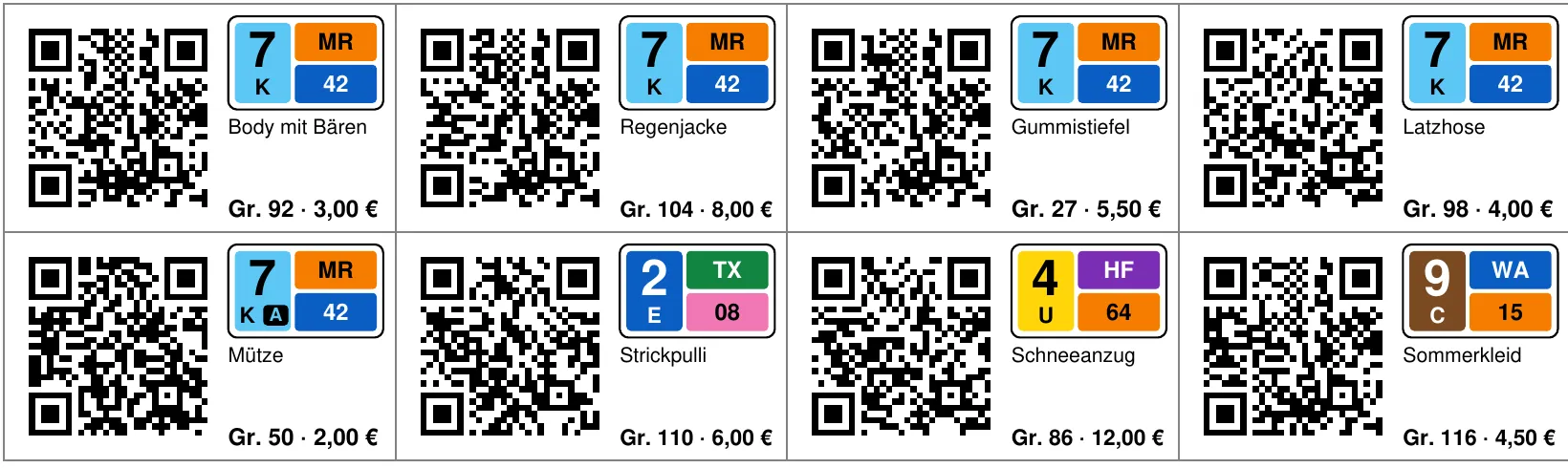
Every label has a gray line to cut along. The mark has a frame, so you see at a glance what belongs together. On large labels, everything is centered one below the other:
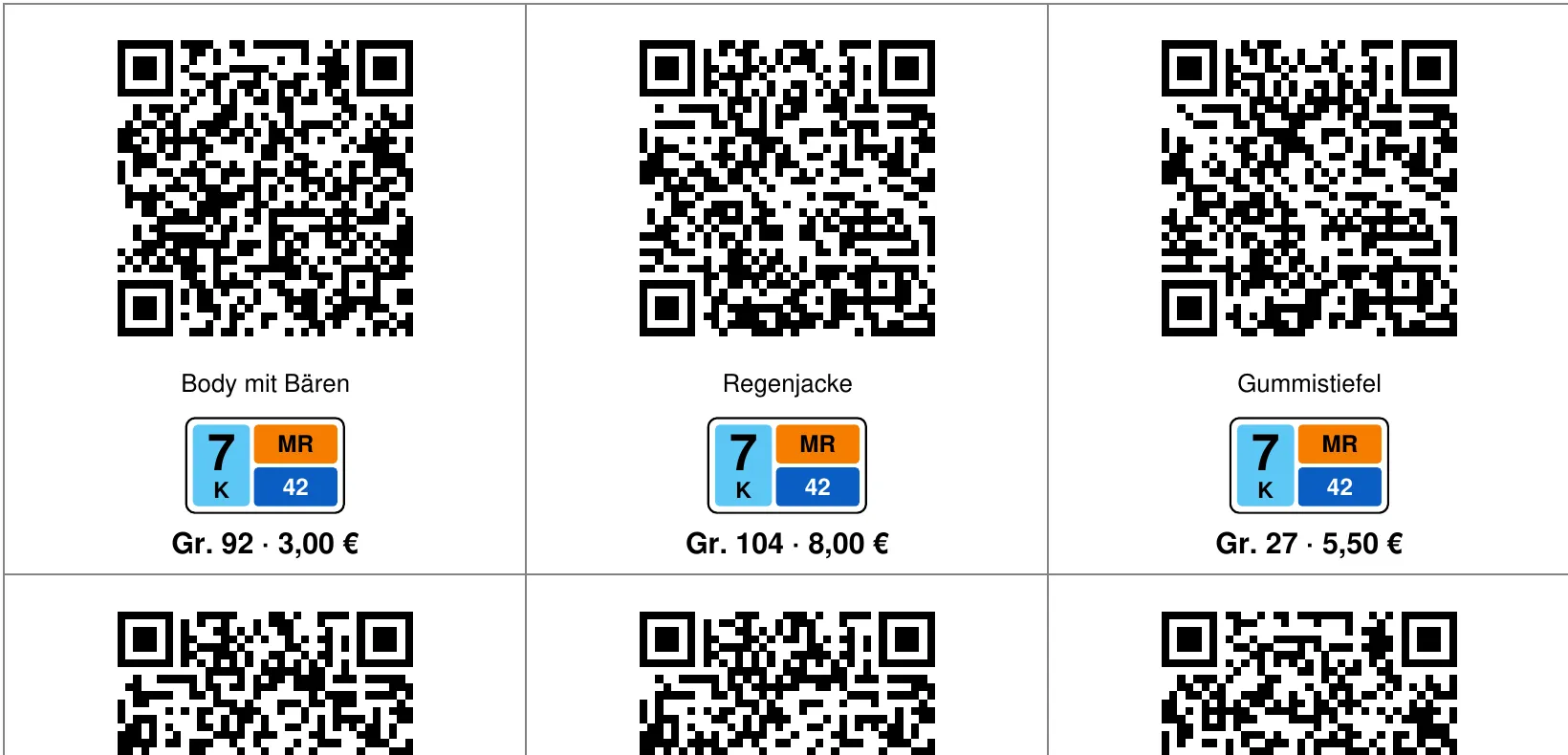
Which label suits my bazaar?
Section titled “Which label suits my bazaar?”Under Seller on the label you choose how your team recognizes the items. The QR code is always on it and works the same with both options. The seller number is no longer on the label, because the label could not be reused otherwise.
| Option | Sorting back | At the next bazaar | Suits |
|---|---|---|---|
| Universal label (default) | In two steps by the mark | Reuse | Almost every bazaar, in both formats |
| Nothing, QR code only | Scan every item | Reuse | Few items that need no sorting |
Setting up
Section titled “Setting up”Universal labels are the default everywhere, so you don’t have to do anything. You can change this in the Which items? step or later under Edit settings.
How the mark is built
Section titled “How the mark is built”The mark has a frame: a colored tile on the left, two fields on the right. On the example label above, it is 7 K · MR · 42:
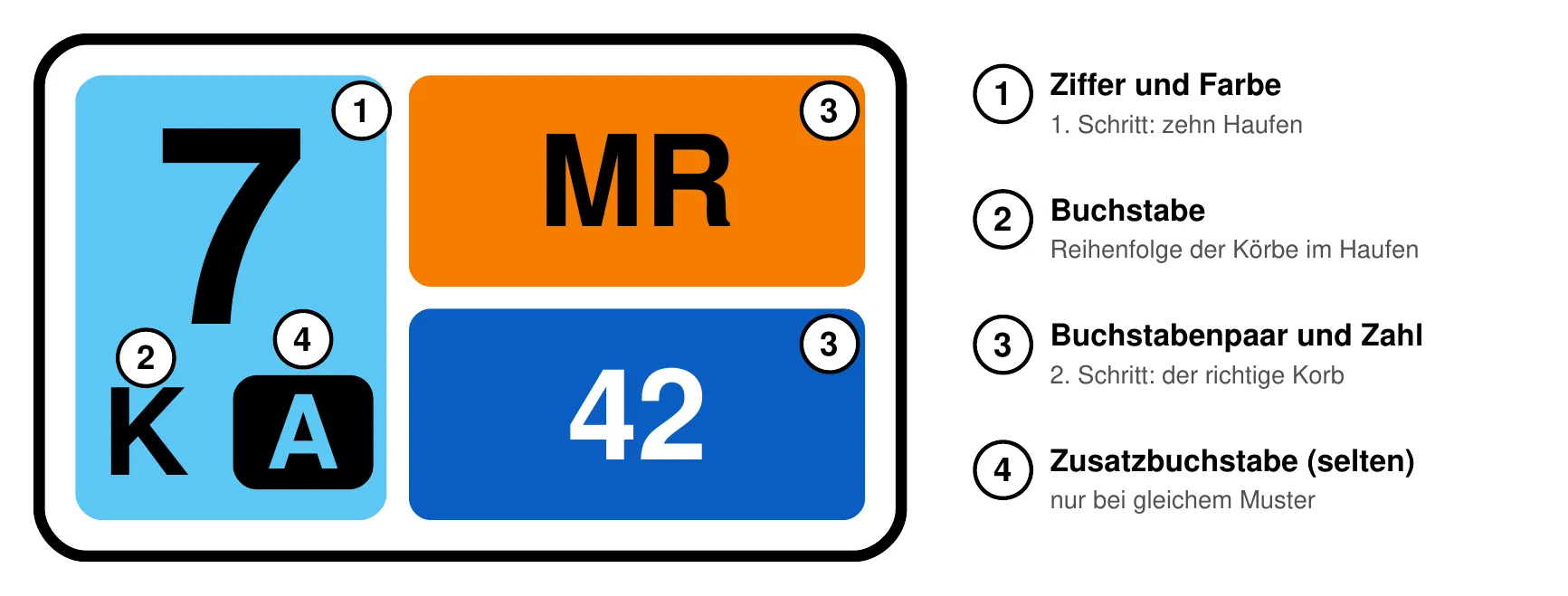
- Digit and color (pile): Each digit from 0 to 9 always has the same color, 7 for example is light blue. You first split the items into ten piles by it.
- Letter below the digit: It sets the order of the baskets within a pile. Letters that look like digits (B, G, S, Z) never appear here.
- Pair of letters and number (basket): a pair like MR and a number from 00 to 99. They lead you to the right basket. I, O and Q never appear, because they are easily confused.
- Extra letter (rare): a dark box next to the letter. It is only added once hardly any of the almost 10 million marks without one are free (A, C, … Y, AA, …). So marks never run out.
The colors of the digits:

The colors of the two fields follow from their text and never match the tile. They only help to find a basket faster. Nobody has to learn this: when sorting, you only compare the label with the basket.
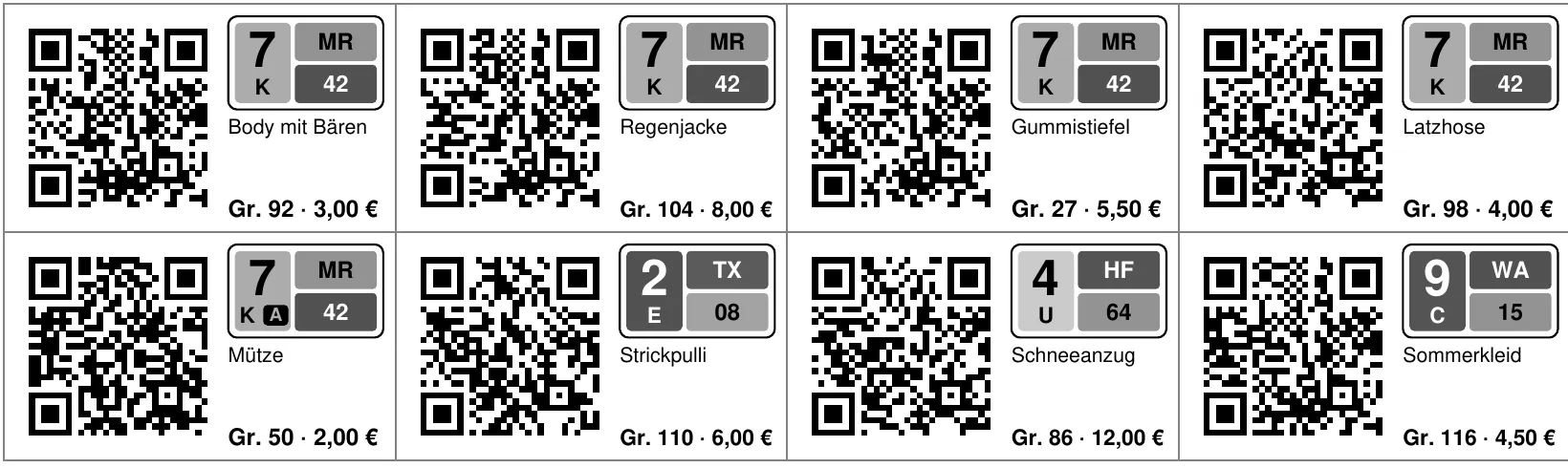
Digit, letters and number already make the mark unique. So it works in black and white and for color-blind helpers:
Sorting items back
Section titled “Sorting items back”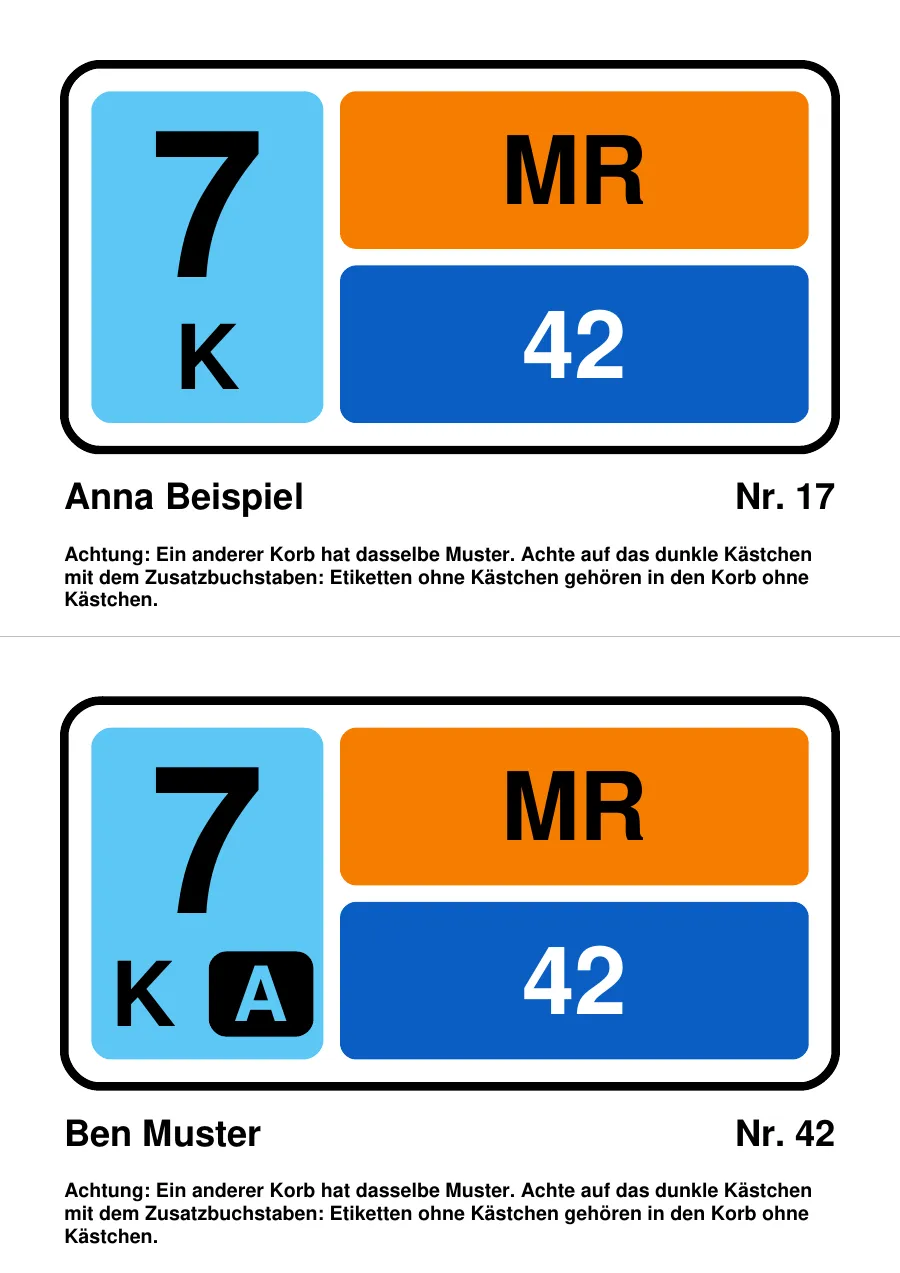
-
Print the sorting sheets. Under Sellers, Sorting sheets downloads a PDF. It has one sheet per seller with the large mark, name and seller number, already in the right order.
-
Set up the baskets. Put the matching sheet into each basket and line up the baskets in this order: by the digit, within it by the letter below.
-
Pre-sort into ten piles. Look only at the large digit and its color and put the unsold items on the matching pile.
-
Sort in. Take a pile. The letter below the digit leads you to the right place in the row; there, put the item into the basket with the same pair of letters and the same number. Always compare both fields, because two baskets can share one.
Printing all labels at once
Section titled “Printing all labels at once”Under Sellers, All labels creates a PDF with the item labels of all sellers, seller by seller. Sold and returned items are left out. This helps if your team prints the labels for the sellers.
Basket label for single baskets
Section titled “Basket label for single baskets”For a single basket, open the drop-off, choose the seller and print the label via Print and Basket label. Sellers print their own under My items with Print basket label and stick it on their basket.
You also see the seller’s mark there. Settlement works as usual, see Settlement and return.
When two baskets look alike
Section titled “When two baskets look alike”Two marks are never fully identical. Only once extra letters are given out can two sellers at a bazaar have the same pattern and differ by it alone, for example 7 K · MR · 42 and 7 K A · MR · 42. With almost 10 million marks without an extra letter, this is very rare.
BazarPro then warns everyone involved:
- Sellers see a note under My items and when printing labels. They need not change anything and point it out when handing in their items.
- The team sees a note under Sellers.
- The sorting sheets of both baskets carry a note to check the dark box with the extra letter.
Reusing labels
Section titled “Reusing labels”The QR code leads to the item, not to the bazaar. So if an item stays unsold, the label can simply stay on:
-
The seller assigns the item to the next bazaar with To bazaar under My items.
-
They bring the item with the old label to the drop-off. It is scanned there like any other.
A label always belongs to exactly one item. For a new item, the seller prints a new one. So that no sheets go to waste, they can enter on every print under First free place on the sheet where to continue on a partly used sheet.
Frequently asked questions
Section titled “Frequently asked questions”Does the seller number still exist? Yes. It is just no longer on the label. It stays in search, in the emails and on the sorting sheets.
Does anything change at the checkout? No. Drop-off and checkout scan the QR code as always.
Can a seller change their mark? No, and that is on purpose: only this way their printed labels stay valid.
Is a mark given out again when an account is deleted? No. A mark is never given out twice, because printed labels may still be around.
Does the mark tell how old an account is? No. Marks are given out at random, so a new bazaar does not start at 0 A either.
Are labels with the former shapes (heart, star, …) still valid? No. With the switch to letters, every seller got a new mark. Labels with shapes have to be printed once more, after that they stay valid.
Does every account get a mark? No, only sellers: with their first item or their first bazaar.
Does the mark also work on other servers? No. Marks and QR codes apply within one BazarPro installation. If you self-host, you have your own marks, and labels from bazarpro.de don’t work there.